
How to Add a Contact to a Tag in ChatSilo
This tutorial shows you how to assign a Facebook contact to an existing ChatSilo tag, so you can keep your conversations organized and easy to find.
Already created a tag? If you've completed the Creating Tags in ChatSilo tutorial, you can skip ahead to Step 4.
Step 1: Open ChatSilo Inside Facebook Messages
Navigate to facebook.com/messages in your browser. Once you're there, launch the ChatSilo extension by clicking its icon in the top-right corner of your browser toolbar.
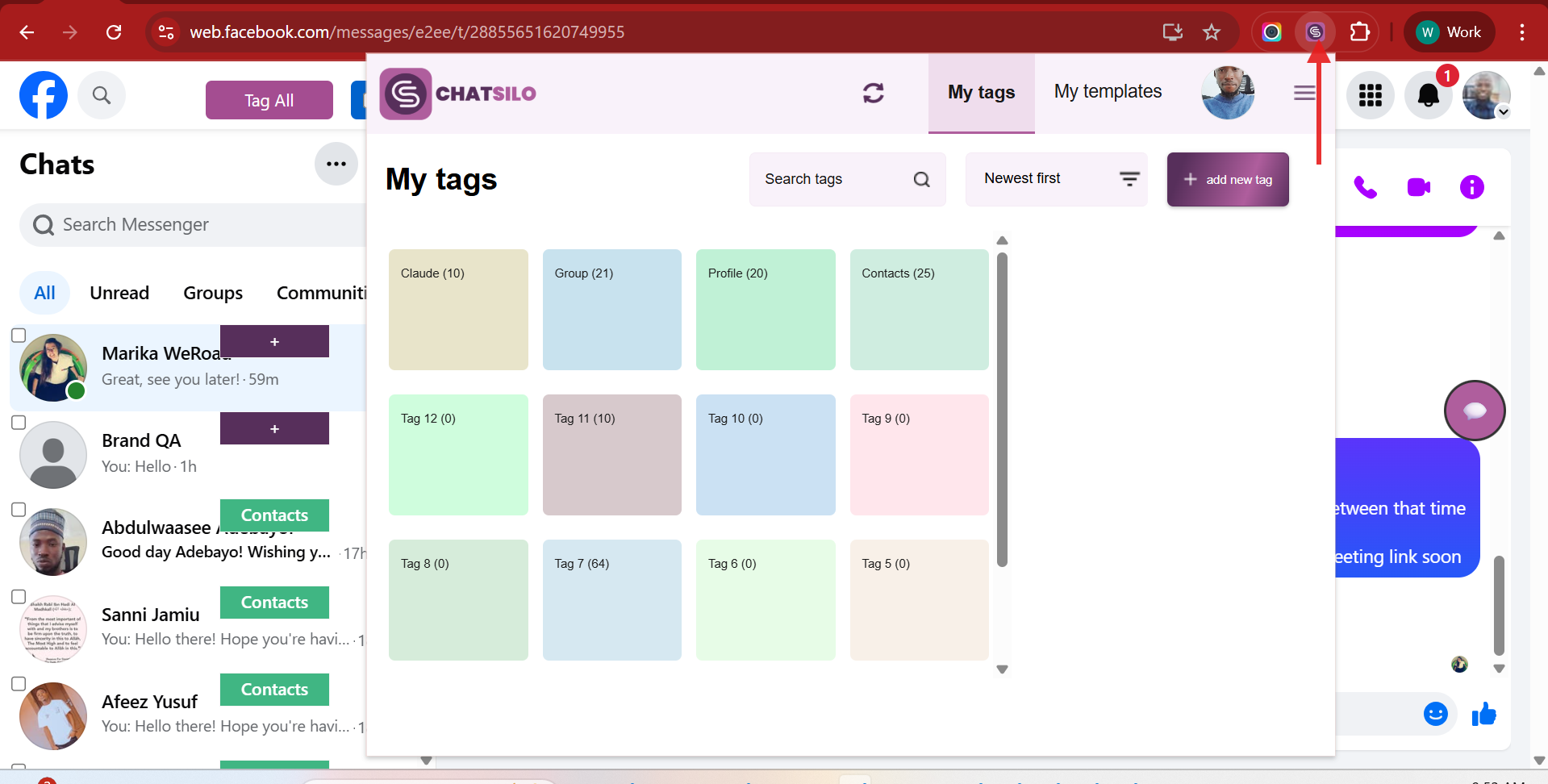
Note: Make sure you're already logged into your Facebook account before launching the extension. ChatSilo needs to be active on facebook.com/messages to work correctly.
Step 2: Click "Add New Tag"
Inside the ChatSilo extension panel, locate and click the Add New Tag button.
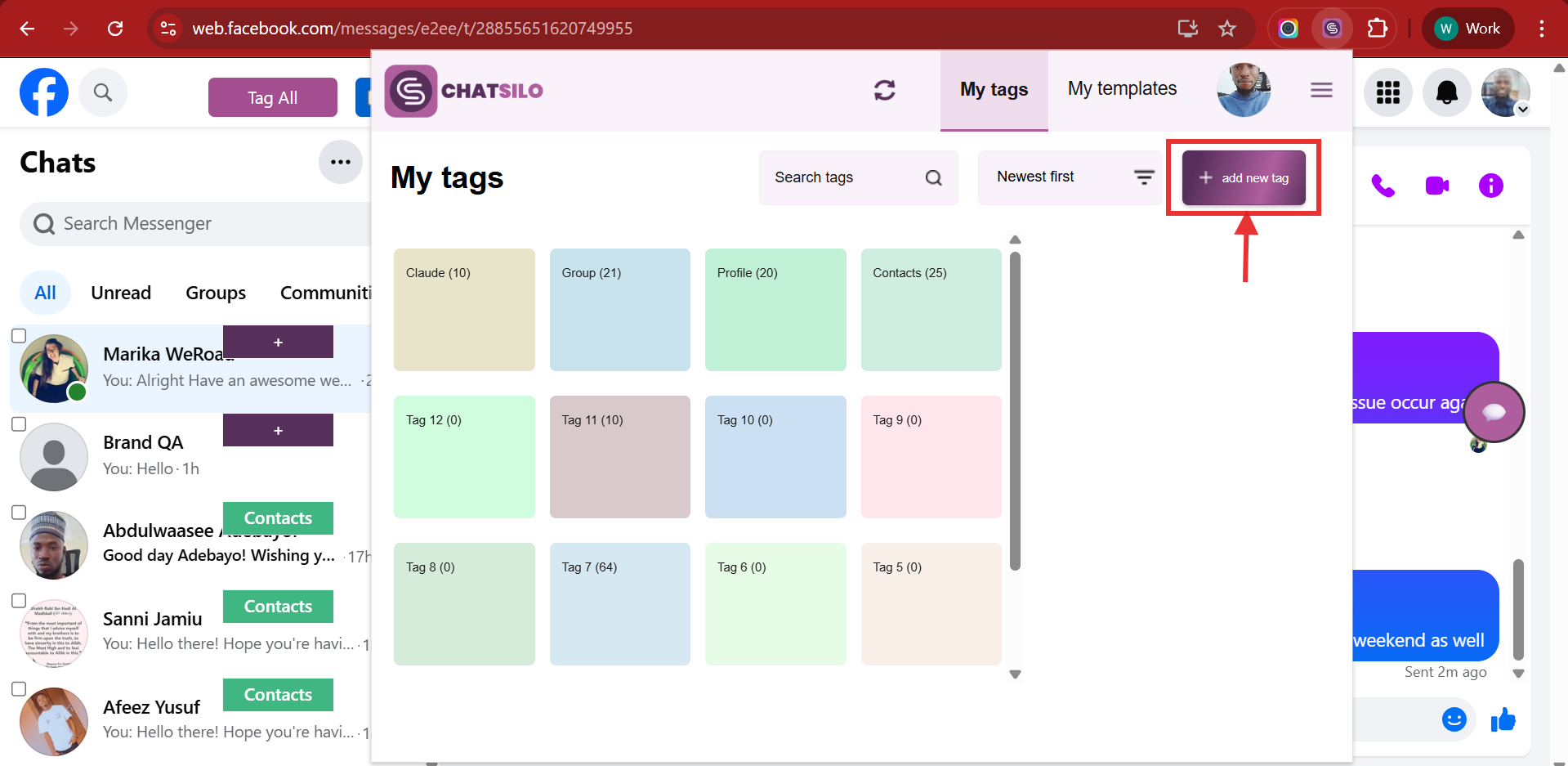
Step 3: Enter a Tag Name and Confirm
In the input field that appears, type your desired tag name — for example, "New Leads". When you're done, click the Add button to save it.
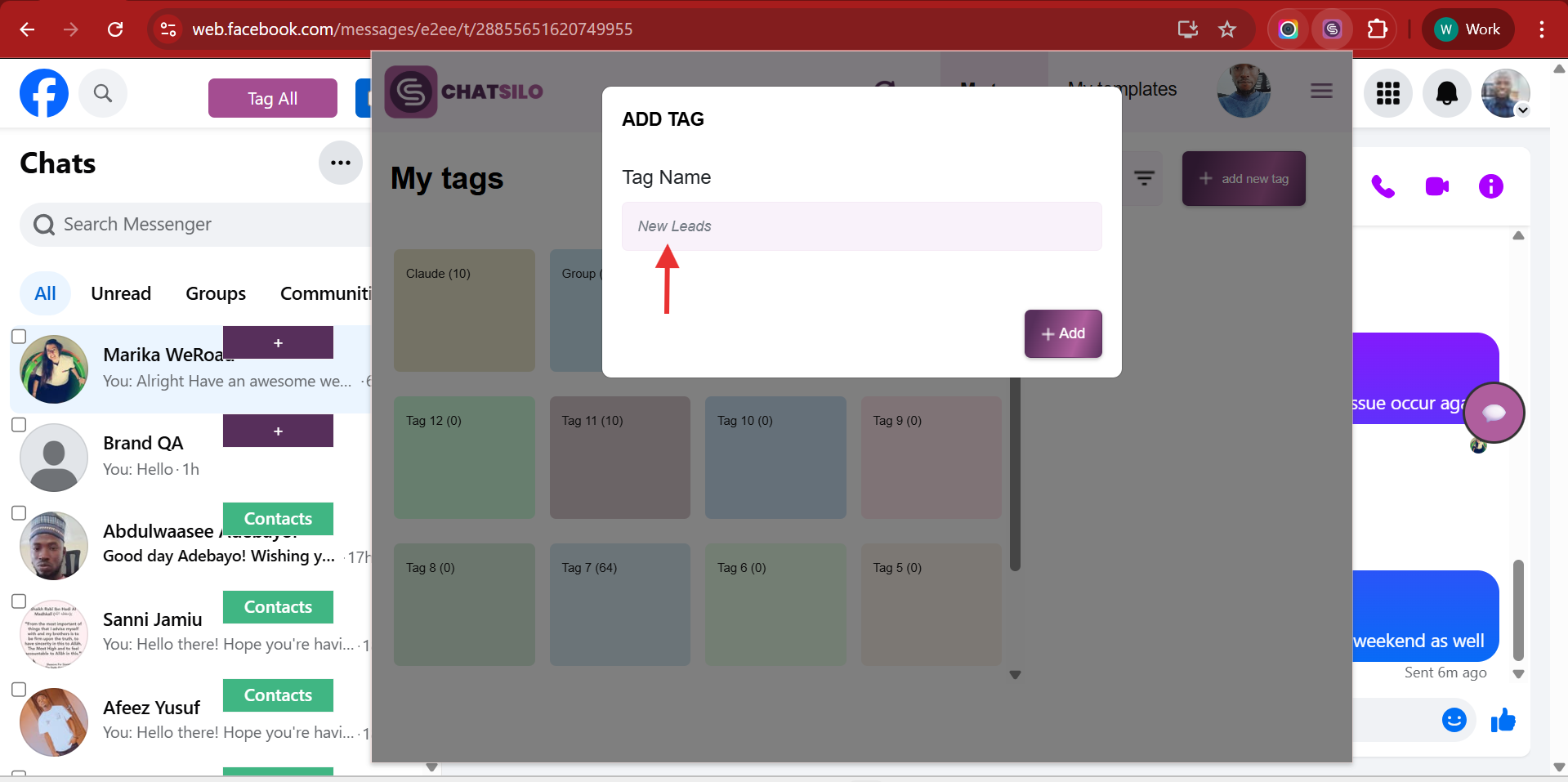
Tip: Choose tag names that are short and descriptive so they're easy to identify when assigning them to contacts.
Step 4: Add a Contact to Your Tag
Find the contact you want to tag in the Facebook message page, then click the Add button next to their name.
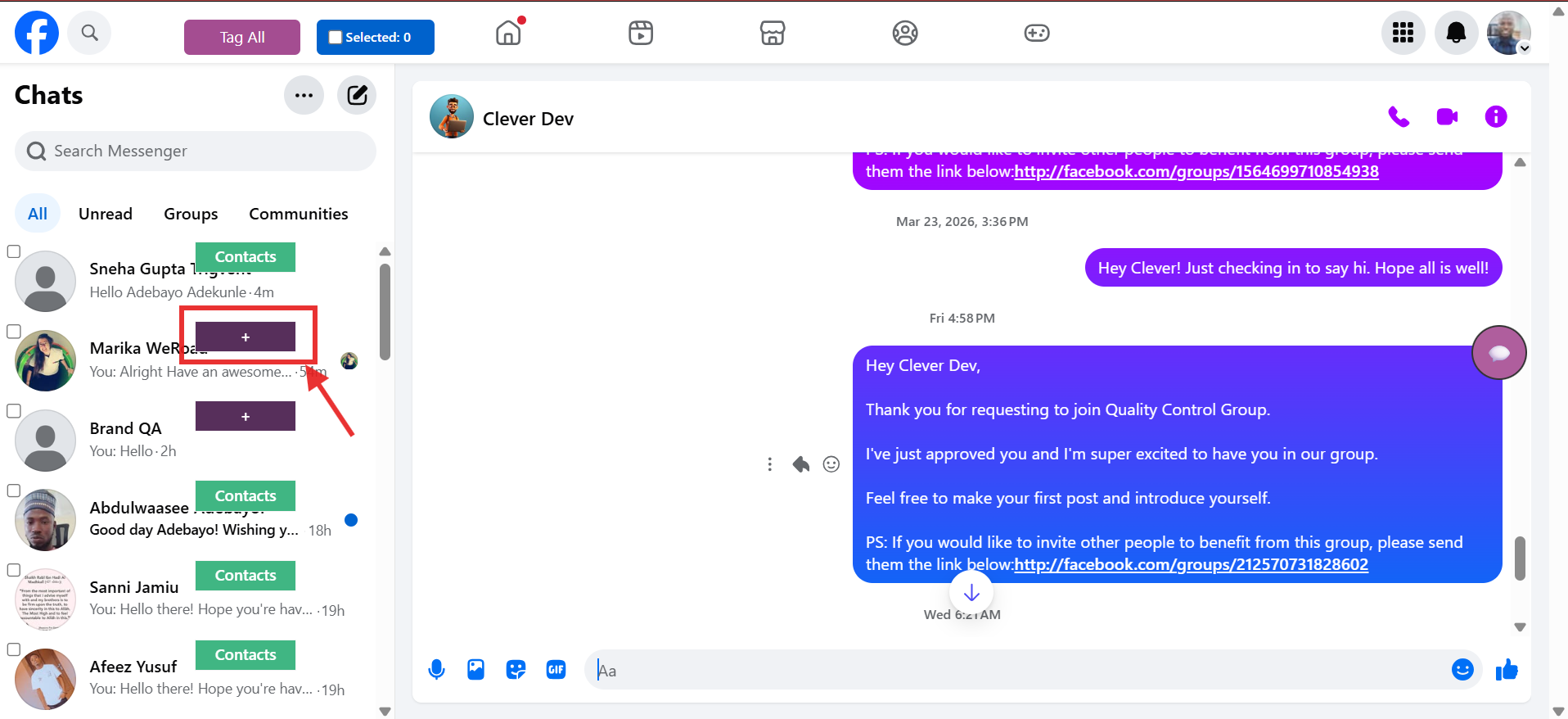
Step 5: Select the Tag and Save
A tag selection menu will appear. Check the checkbox next to the tag you want to assign — for example, "New Leads" — then click the Update Tag button to confirm.
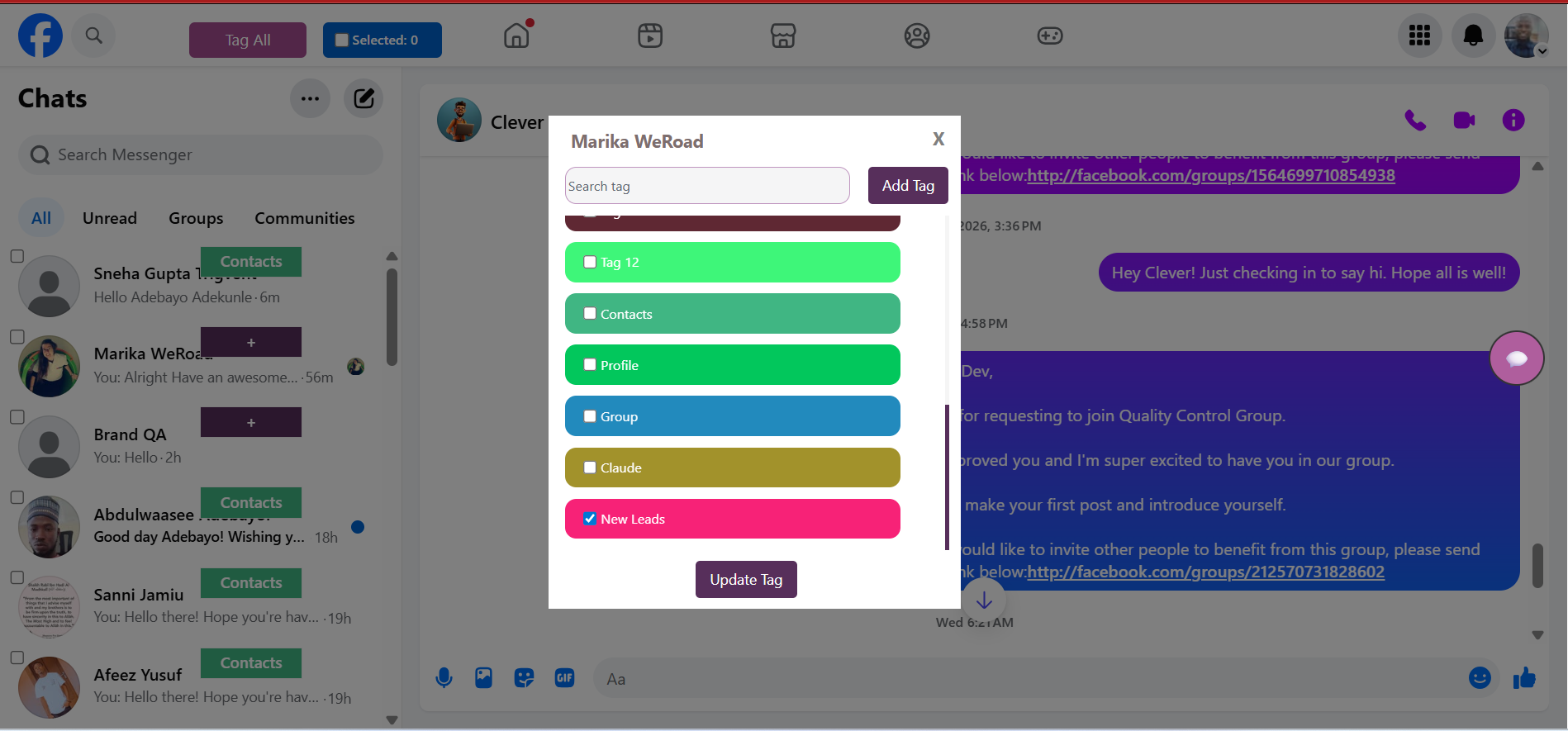
Tip: You can select multiple tags at once if you want to assign the contact to more than one category.
Step 6: Confirm the Contact Was Added
Once you click Update Tag, a confirmation message will appear on the screen letting you know the contact has been successfully added to the tag. You can also verify by navigating to the Tags section in the ChatSilo panel and selecting the relevant tag.
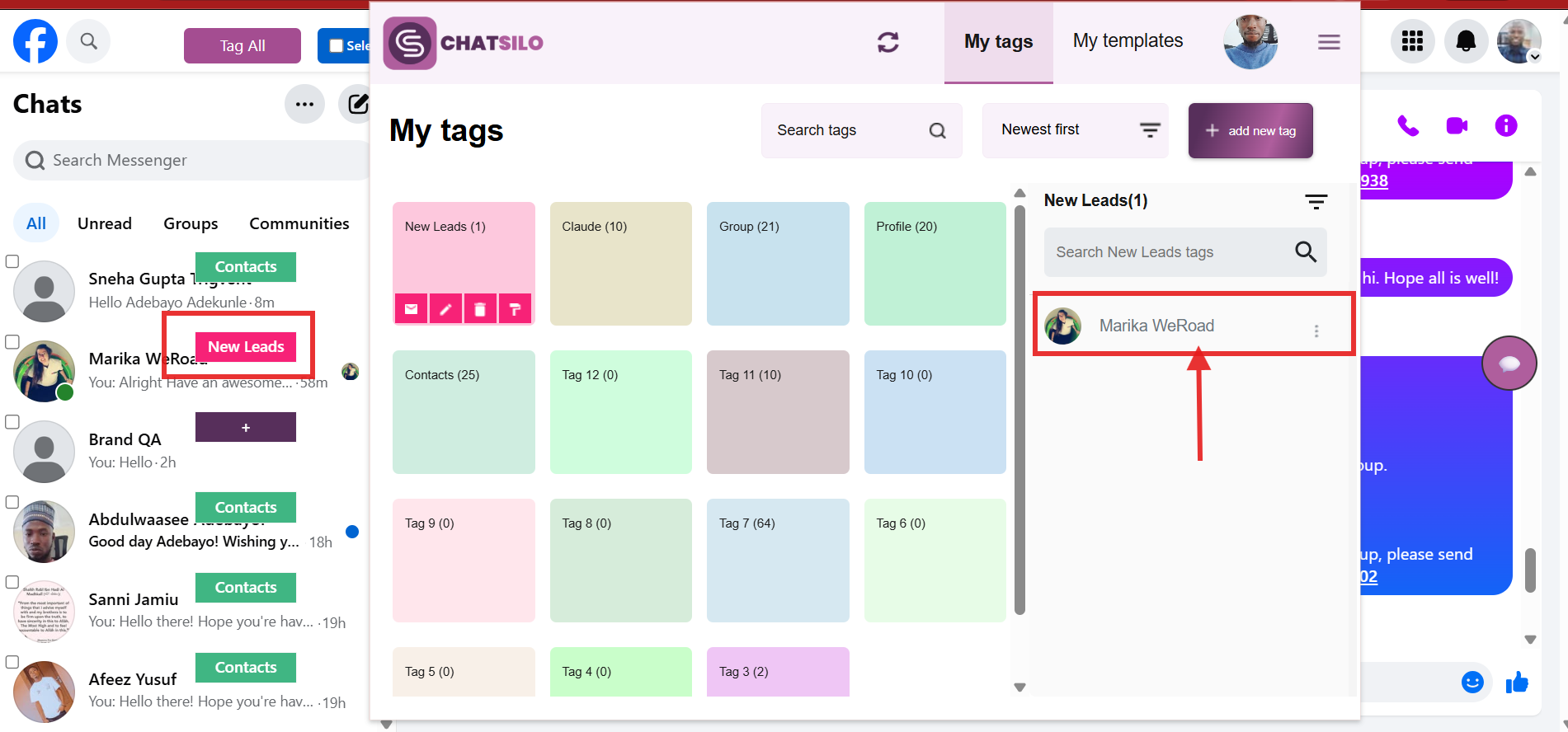
You're all set! 🎉
You've successfully assigned a contact to a tag in ChatSilo. Use this method to categorize all your facebook.com/messages contacts and keep your outreach organized and efficient.