
How to Set a Reminder and Sync It with Google Calendar in ChatSilo
Never miss a follow-up — this tutorial walks you through creating a reminder in ChatSilo and syncing it directly to your Google Calendar.
Step 1: Launch the ChatSilo Extension
Open ChatSilo from your browser toolbar to get started.
Click the ChatSilo extension icon in the top-right corner of your browser. The extension panel will open and display your ChatSilo dashboard.
Note: If you don't see the ChatSilo icon, click your browser's puzzle-piece (Extensions) icon to locate and pin ChatSilo to your toolbar.
Step 2: Navigate to the Reminder Section
Access the Reminder tool from ChatSilo's main menu.
Click the menu icon (the three horizontal lines, sometimes called the "hamburger" icon) inside the ChatSilo extension. From the menu options that appear, select Reminder.

Step 3: Create a New Reminder
Open the reminder creation form.
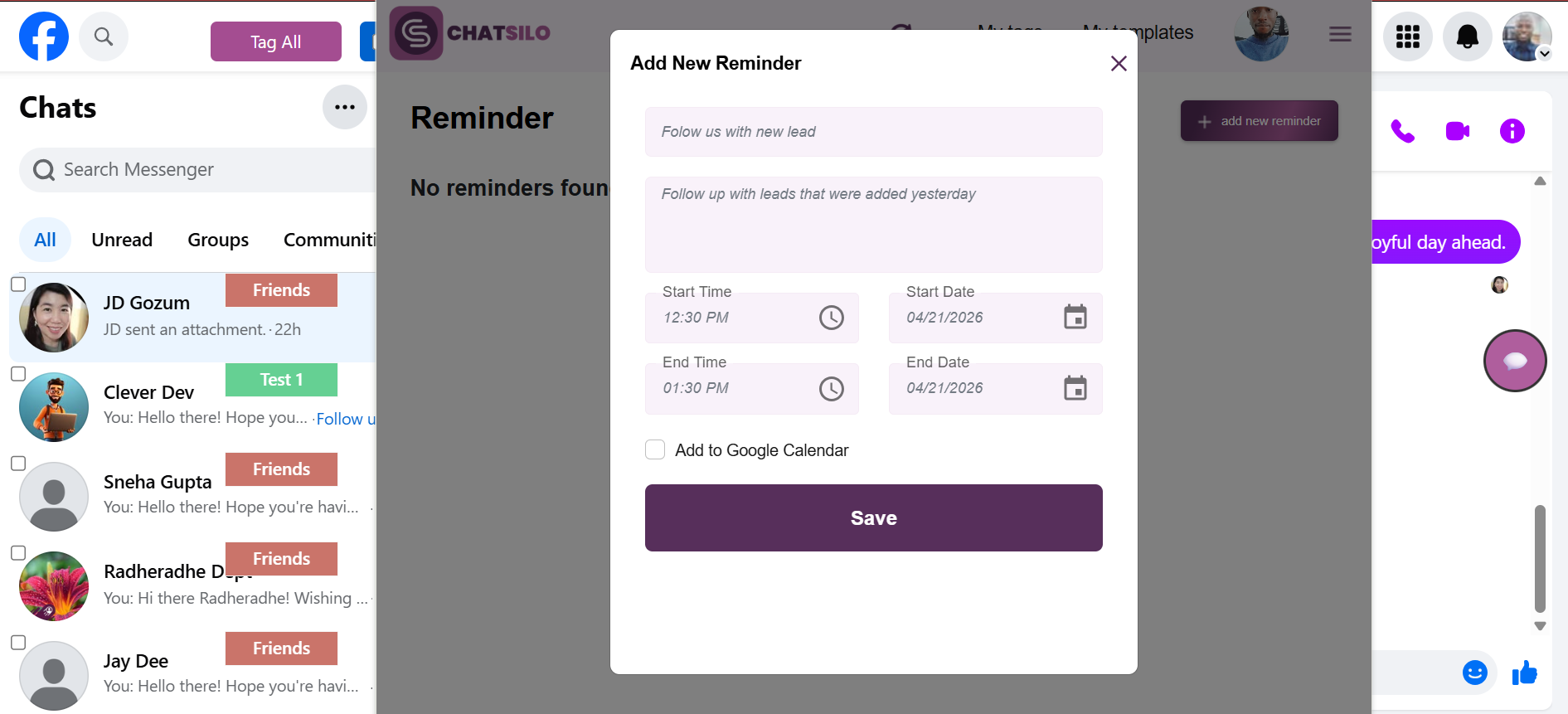
Inside the Reminder interface, click the Add Reminder button. This opens the form where you'll fill in the details for your new reminder.

Step 4: Fill In the Reminder Details
Enter the key information for your reminder.
Complete the following fields in the reminder form:
- Title — Enter a short, descriptive name for your reminder (e.g., "Follow up with new Lead").
- Description — Add any extra context or notes you want to remember.
- Date — Select the date you want to be reminded.
- Time — Set the specific time for the reminder.
Tip: Be specific with your title so you immediately know what the reminder is about when it arrives.
Step 5: Enable Google Calendar Integration
Sync your reminder to Google Calendar so it appears alongside your other events.
Check the Add to Google Calendar checkbox next to the Google Calendar option. Once checked, your email address will be automatically populated in the email field — confirm it's the correct address, as this is where the calendar invite will be sent.

Warning: If the email address shown is incorrect, update it manually before saving. The reminder will only sync to the calendar account associated with that email.
Step 6: Save Your Reminder
Confirm and save everything you've entered.
Once all the required fields are complete, click the Save button to save your reminder. ChatSilo will store the reminder and — if you checked the Google Calendar option — send it to your calendar automatically.
Step 7: Confirm the Reminder in Google Calendar
Verify that your reminder synced successfully.
Open Google Calendar and navigate to the date you selected. Look for the reminder you just created — it should appear as an event on your calendar, ready to notify you at the scheduled time.

Note: If the reminder doesn't appear immediately, wait a moment and refresh your Google Calendar. Calendar sync can occasionally take a minute or two.
You're All Set! 🎉
You've successfully created a reminder in ChatSilo and synced it with your Google Calendar. You'll receive a timely notification when the date and time arrive — so you can stay on top of every follow-up and scheduled event without missing a beat.